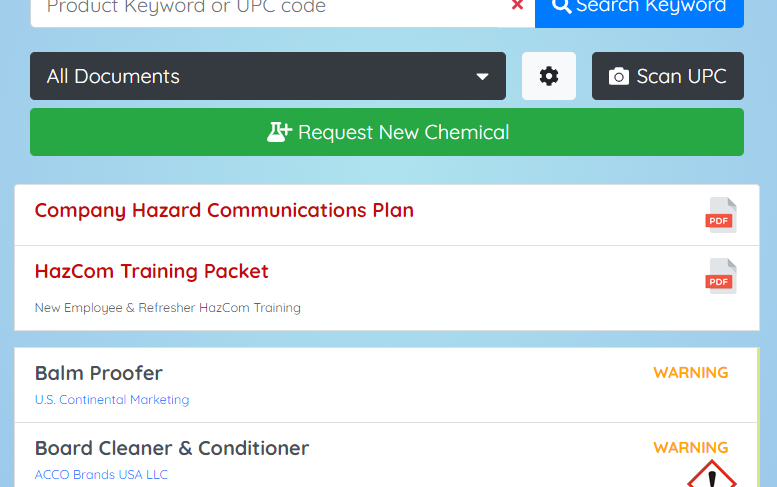
Adding Non SDS documents to your portal
If you would like to make other safety documentation available to your employees within the SDS portal, you can do so by following the procedure below:
Step 1. Login to your Admin Account
To add additional documents you will need to login to the administrator dashboard and have permission to make changes to the "Global Configuration".
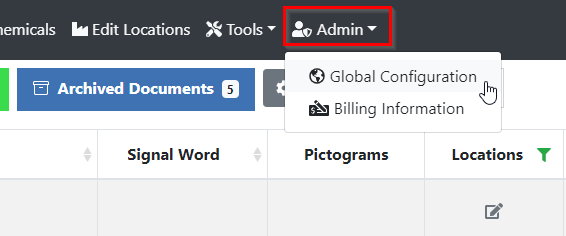
Step 2. Access the Global Configuration
Select "Global Configuration"" from the "Admin" menu.
Step 3. Upload Your Documents
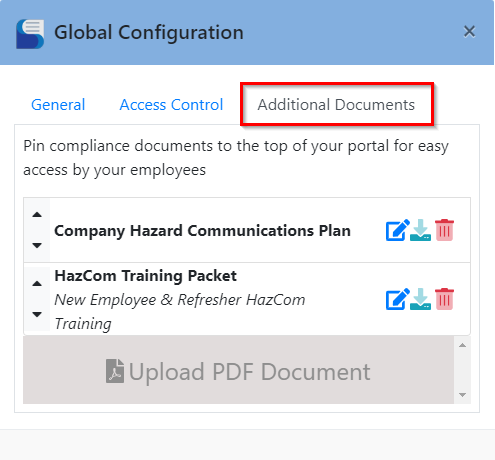
Select the Additional Documents tab, and use the interface to upload your PDF documents.
The interface also provides you the ability to name and describe your file, as well as set the order that the documents will appear.
Step 4. Update the Text Shown
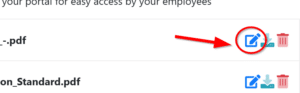
Click an items "Edit" button to update the title and text shown for each document.
Step 5. View your documents in the employee portal
With the additional documents now in the system, visit the employee portal to see the documents appear at the top of your SDS list.